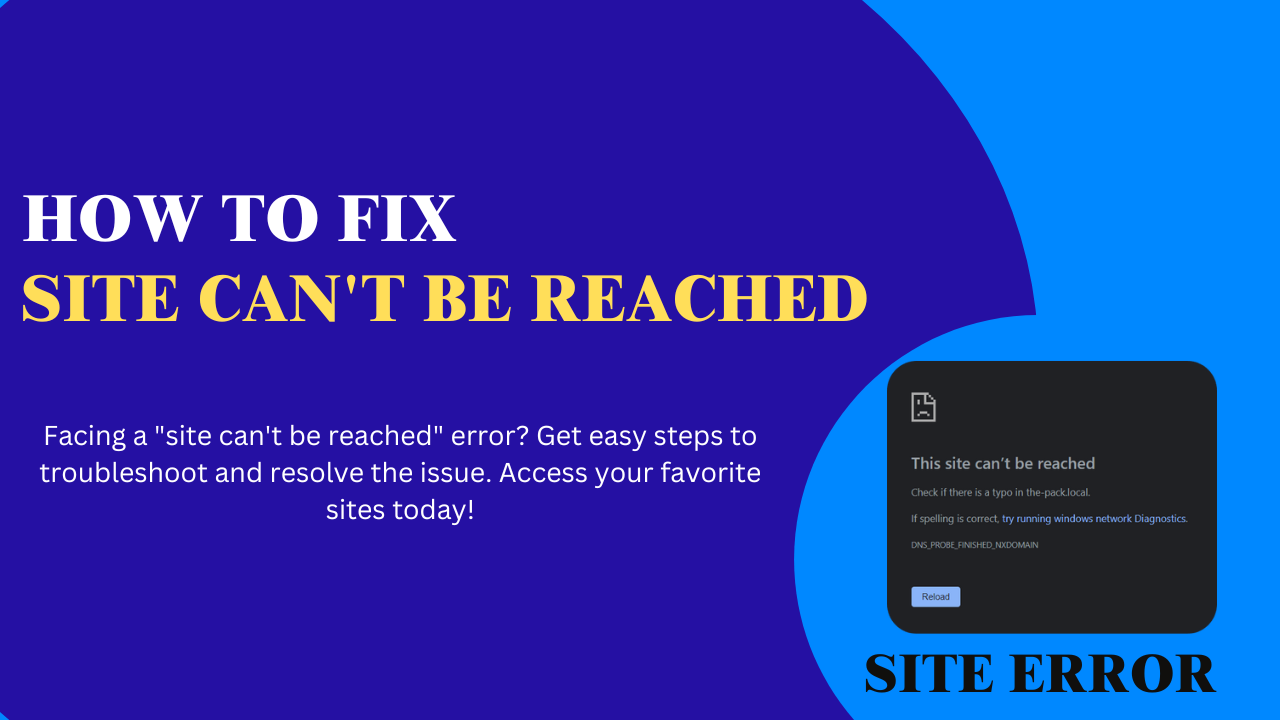
How To Fix Site Can't Be Reached
Fix "Site Can't Be Reached": Troubleshooting Your Website Downtime
Website downtime can be incredibly frustrating. Business owners know how quickly downtime can lead to lost sales and a damaged reputation. According to a report from the ITIC, 60% of companies experience downtime that costs them anywhere from $100,000 to $5 million per hour. It's a serious issue that can affect anyone with a website.
The "site can't be reached" error can stem from several common causes. It might be an issue with your internet connection, DNS problems, server-side issues, or even something within your website's code. Each of these areas can lead to your site being unreachable. This article will guide you through effective solutions to help you tackle this frustrating problem.
Checking Your Internet Connection
Basic Troubleshooting Steps
First, ensure your internet connection is stable. Restart your router and modem. It can reset your connection and resolve temporary issues. Don’t forget to restart your computer too. Check if other devices connect to the internet successfully. If they're working, the problem may lie elsewhere.
Contacting Your Internet Service Provider (ISP)
If restarting doesn't help, contact your ISP. Explain your issue clearly and follow the troubleshooting steps their support offers. They may be aware of outages in your area.
Testing Your Internet Speed
A slow connection can be a culprit. Use online speed tests like Ookla Speedtest to check your internet speed. If the speed is low, there might be bandwidth issues that your ISP needs to address.
DNS Issues: Resolving Name Server Problems
What are DNS Servers and How They Work
Domain Name System (DNS) servers translate website names into IP addresses. Without this translation, your browser can't access the desired website.
Troubleshooting DNS Problems
Clearing your browser's cache and cookies can help resolve DNS issues. Check your DNS settings by accessing your network settings. Make sure they align with your ISP's recommendations.
Using a Different DNS Server
Consider switching to a public DNS server, like Google Public DNS (8.8.8.8). To change this, go to your network settings, select "Use the following DNS server addresses," and input the new addresses.
Server-Side Problems: Identifying and Fixing Hosting Issues
Contacting Your Web Hosting Provider
If the issue persists, contact your web hosting provider. Report the error and request assistance. For example, you can write: "Hello, my website is down, and I'm receiving a 'site can't be reached' message. Can you help?"
Checking Your Server Status
Visit your hosting provider's status page. Look for any reported outages or maintenance notices.
Investigating Server Resource Usage
If you have access, check your server's resource usage. Monitor CPU, RAM, and disk space. If any resource usage is at its limit, you might need to upgrade your hosting plan.
Website Code and Configuration Errors
Recent Changes to Your Website
Reflect on any recent updates made to your website. Sometimes a small change can cause a bigger issue.
Checking Your Website's .htaccess File
For advanced users, the .htaccess file controls how your server behaves. Errors in this file can impact accessibility. Look for misconfigurations that might be blocking access.
Seeking Help from a Web Developer
If you're unsure, it may be time to consult a web developer. They can troubleshoot code issues likely causing your website's downtime.
Firewall and Security Issues
Checking Your Firewall Settings
Examine your firewall settings. Sometimes, they block access to your site. Ensure that your settings are configured to allow access.
Investigating Potential Malware or Security Breaches
Consider the possibility of malware or security breaches. Check your website’s security logs to identify any suspicious activity. Cybersecurity expert John Doe states, "Regular security audits help catch potential breaches early."
Temporarily Disabling Security Plugins
As a last resort, you might disable security plugins. Be cautious, as this opens up your site to risks. Ensure you re-enable them immediately after testing.
Browser-Specific Problems
Trying a Different Browser
If your website is still unreachable, try a different browser. Testing it on Chrome, Firefox, or Edge can help identify if the problem is browser-specific.
Clearing Browser Cache and Cookies
Clearing your browser's cache and cookies is essential. Each browser has its method; follow these steps to do this effectively.
Checking Browser Extensions
Extensions can conflict with website access. Temporarily disable them to see if one of them is causing the problem. If the site is accessible afterward, re-enable them one by one to identify the culprit.
Getting Your Website Back Online
Getting your website back online requires systematic troubleshooting. Start with checking your internet connection and move through the list of potential issues. Keep a proactive approach to prevent future downtime, such as regular maintenance checks and updates.
Have experiences of your own? Share your stories in the comments and ask any questions you may have. Your insights could help others facing similar problems.






Comments (0)
No comments found